
Showing posts with label iTunes. Show all posts

Thursday, April 9, 2009

Throw Out Your Workout DVD's... Workout With Free Video Podcasts!

Stop paying money for workout DVD's and hop on the Free Fitness Podcast wagon. I stumbled across an article that provides information on how to get free fitness podcasts from iTunes.

Its not at all difficult to find the podcasts:
  1. Go to iTunes Store
  2. Select "Power Search" on the right hand side of the page
  3. Fill out the search parameters as shown in the picture below. Your results should look similar to mine.
  4. Now just find a workout that you like and go for it. Here is a link to one that I like - although I have never used it...

Tuesday, April 7, 2009

Holy Bonus: How to remove iTunes DRM from Movies


Have you ever purchased a movie from iTunes and been frustrated by the fact that you can't burn it to a DVD? Even worse for iTunes, have you never purchased a movie from iTunes knowing that you can't burn it to a DVD?

Lucky for us, there is a method of stripping the DRM (digital rights management - the yucky stuff that prevents you from straight up burning an iTunes movie to a DVD) from an iTunes movie file. I found an article at Wired that explains the process. Wired is a Tech news, review, and How-To site. The How-To portions functions like a Wiki where people can post How-To articles to the site in a manner similar to Wikipedia.

Here is a link to the article.


Sunday, February 22, 2009

IMDB and IMDB... for music

IMDb - Internet Movie Database. If you want to know about movies, you go to the Internet Movie Database. Its a massive collection of pretty much every movie ever made. You have probably stumbled across it anytime you have googled a specific movie or even star. You can get plot summaries, cast listings (even click on specific stars and get all their career information), ratings (even specific information about exactly what is in movies), reviews, and a host of other information. I love to look at the top 250 movies and get ideas of movies to see or re-see. Well that's all fine and good...

BUT, WHERE IS THE OTHER IMDb (Internet MUSIC Database)? While various resources exist which definitely resemble an online music database, the most straightforward answer is that there really isn't one yet. Arguably, it seems only logical that there should be a database of information about music, bands, songs, or whatever. Compared against movies however, music is a much more complex animal. Think about how many groups and artists there are. Think about how many labels exist for each of them. Think about the vast complexity of information - from concerts to album releases to band members - that exists in the world of music. Truly, compiling a database for music is an extremely daunting task - especially in terms of what IMDB offers.

So what are some of the resources that can help in the quest for information about music:
  1. Google: obviously - this isn't the most all-in-one solution for information. Using it to get information about Music is more time consuming and daunting a task than other options on the list.
  2. iTunes (Amazon)- want information about music - go to where its sold! iTunes is one of the most vast compilations of music for sale on the web. Not only dones iTunes bring you information about artists and songs, it brings you information about artists and songs that are alike, thereby giving you a means to conceptualize what kind of music you are looking at and find more music that fits your taste. See Genius Sidebar. As for Amazon, same concept, just a little more difficult to use - in my opinion.
  3. SoundUnwound - this is Amazon and IMDB's early attempt at making a music database. Its in the beta stage of its development but to me, it seems to be a pretty darn good start. You can search any person, group, or band and it shoots back a list of results for what you might be looking for. I searched the band U2. There were thousands of matches for the band, but I knew from looking that the first option was the band summary. The site then provides the following: profile, discography, members, and "like U2... well check out..." Go check out a band or person you want and see how you like it. The benefit of using SoundUnwound to iTunes is that you get information about each individual in the band and you can use that to find what other band or music that person has influenced. I have a feeling I will be talking about this again in the future.
  4. Soundflavor - if you've heard it, they probably have it - Soundflavor compiles music by genre, decade, lyrics, songs, and artists so that you make music and video playlists. Postable on Facebook, MySpace, Friendster, blogs, and other websites, Soundflavor's more than a share-site, it's a place to discover. Search over the extended musical listings and discover new artists and sounds. Did I mention that some free music tracks are downloadable? With 30,000 songs and climbing, Soundflavor is definitely a resourceful guide to music! I will likely be re-visiting this site as well.
  5. Pandora - are you looking for music similar to music that you like? Why not just listen to some music on Pandora for awhile, pay attention to what you hear, and take note of what you hear?
  6. Any other ideas? Let me know!
So there you have it, IMDb and IMDb for Music! Search, Learn, Discover, Enjoy!

Tuesday, February 10, 2009

iTunes: using iTunes to manage my music

Today is probably my last post for a little while about music. Today is all about music management. Music management is important because it leads to better organization. The better your music is organized, the easier it is to navigate your music and enjoy it. So that seems pretty simple to understand, lets learn some simple ways we can manage our music. Basically, this post is a crash course on using iTunes. It contains information and small tutorials that I think are good for new and old users alike. A lot of people have been using iTunes for years and years and don't know some of the simple wonders it can do!

First things first
You need to be letting iTunes manage your music for you. This sounds strange. It won't actually manage your music beyond organizing it into folders for you. YOU will be doing the management BUT you will be doing it through iTunes which is the easiest way I know to organize and manage your tunes. To turn this feature on:
  1. go to Preferences (or Settings)
  2. go to the Advanced Tab
  3. Make sure that the "Keep iTunes folder organized" box is checked
  4. Make sure that the "Copy files to iTunes Music folder when adding to library" box is checked.
The iTunes Music folder
Now that its managing your music, let me explain something. iTunes will now copy any music you add to your iTunes Library to the iTunes Music folder where it will be managed. So if you buy something from iTunes, that music will be put directly into your iTunes folder. If you rip a CD using iTunes, that CD will also be placed directly in your iTunes folder - you don't have to worry about those. IF, however, you have music that you got from a backup device or from a friend or whatever, that music will be COPIED to the iTunes music folder, meaning two copies will exist once you add it to your music library: the one in your iTunes Music folder and the original. The BEST way to add music that is in a format like this is: simply grab and drag the folders where the music is and drop it in the iTunes window. You will see iTunes process it and then it will show up on your screen.

At this point, you no longer need the original to play the music in iTunes because it is IN iTunes. So, unless that folder is on a backup device, you can delete it becuase you have a copy of it in your iTunes folder and you will be managing it through iTunes. All the music you have will now be stored SOLEY in your iTunes Music Library. It can be easily retrieved from that location, so don't worry, iTunes didn't steal it from you.

Managing your music
The next thing to explain is that ANY changes you make to your music in iTunes (i.e. track name, number, genre, etc) will be made TO THE FILE ITSELF. This means that your album art will be saved as well. Now, lets talk about editing a song, songs, or album information.
  1. First, information can be edited on any level: song-by-song, songs-by songs, album-by-album, albums-by-albums, etc.
  2. You can click on one or many songs or albums and press Command+i (Mac) or Control+i (PC).
  3. You can also right click and select Get Info. Either way, this brings up the song's information.
  4. You can edit this information by exploring any of the tabs.
  5. The most common change I make is highlighting multiple songs or albums, editing the info, and changing the genre of that music so it is all Rock, for example.
  6. Another common change you might need to make is to distinguish an audiobook from music. To do this, press command (control) + i on the should-be book, select the "option" tab, and change the "Type" to "audiobook."
A CAVEAT (warning): Do not change information for multiple tracks unless you want all those tracks to share that same information. For example, NEVER change the track title of multiple tracks or all the files will be titled the same. Items you might want to change on a general level: genre, type, rating, album name, etc.

Album Art
The last thing I want to talk about is Album Art. If you have music in you iTunes library that doesn't have album art (i.e. the album in "album view" shows up as a question mark) then you are missing out on one of the best aesthetic feautures of iTunes. To remedy this:
  1. first try right clicking the album and selecting "Get Album Artwork." Thats the easy and obvious way.
  2. If the artwork doesn't show up, its becuase the album is titled in some way that iTunes is not able to recognize. Album art works based on album titles. You should try going to the iTunes store to find that album and see what it is called in iTunes.
  3. Change the name of the album by clicking on it or all the songs in it and pressing command (control) + i. Then change the album title. That should do the trick (make sure you right click and select "Get Album Artwork" again).
  4. If not, then the last method is a sure fire way. Simply google the album,
  5. go to images,
  6. find an image that matches the album,
  7. save it to your desktop,
  8. highlight all the music that should have that image,
  9. then drag and drop the image into the bottom left corner window that says "Drop Image Here" or something like that.
That will attach the image to all the files you selected. You can do this with music that you know doesn't have artwork on iTunes and you can put in whatever picture you want. That's me next to Robin Thicke:
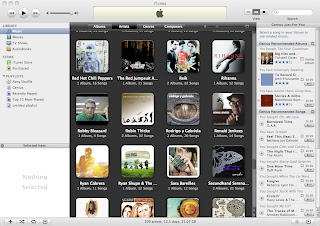
Well, thats it for today. I know it was a lot of reading but I hope you are now an expert on the basic iTunes music managment techniques!

Monday, February 9, 2009

iTunes: Using the Genius Sidebar


Holy cow another post about music stuff. Today we are talking about the Genius Sidebar. Named after these nerds:


Its okay to be a nerd though. Genius Sidebar is pretty awesome - I'll just let that cat out of the bag right now. However, it does have its limitations. We will address all of this as we talk about how you use it and how you benefit from it. (By the way, I am making the assumption that everyone has and uses an updated version of iTunes... its like water - you need it to live.)

Using it: Well its pretty basic really. Start by making sure that its turned on:
  1. If its not already prompting you to turn it on (it would be doing this on the right side of your iTunes window - it shows up as a sidebar)
  2. then you need to go to iTunes preferences (or settings) and under the "General" tab,
  3. click the box next to "Genius."
  4. Boom baby - its on!
Next, let it do its "thang." It will go through all of your music and get a feel for what you like. Don't worry, there is nothing creepy about this (its not like iTunes is the Government). After it knows you and your music, it will be able to do a few amazingly simple and awesome things for you:
  1. Tell you what you want: Genius can now recommend songs and albums to you that you probably like based on what you already have. Generally, it just tells you what it recommends. Specifically, you can click on a song and it will tell you, based on that song, what you might like. This is beneficial to you because now you can discover new music or just remember music that you like but don't have. This is beneficial to iTunes because you are likely to use it to buy the music - the link is right there for you to click and buy it. Darn clever Apple... If you don't have money, you could always use Sad Steve.
  2. Make cool playlists: So lets say you are listening to a great song and you wish that there was some way you could hear other songs like it without having to go through your whole library to find the tunes. Just have genius do it for you. Seriously, 99 times out of 100 (I don't guarantee this number, but thats how I feel) it will hook you up with tunes that you really wanted to listen to. This is how: click on the song that you like, then click the genius icon (its in the bottom right hand corner of your iTunes window). Presto! There is your Genius playlist, intelligently playing the songs that you love.
  3. Do you have a new iPod? (New as in pretty darn new - latest generation new). Well, it should be able to use Genius too. I've only done this on a new iPod Nano. You can click on a song using the center button (as if you were making an on-the-go playlist, and it will give you the option to create a Genius playlist - JUST LIKE iTunes DOES FOR YOU!!) I imagine its even easier with a iTouch or an iPhone. Holy Cow!
So what are some disadvantages? Well, I wish that I could save some of the Genius playlists I have listened to. There may be a way to do this but I haven't figured it out. Things with iTunes are usually blatantly easy to figure out and I haven't yet which leads me to believe that it is impossible. You can export a song list to a text document and do something called "Copy to Play Order" but what the heck does that mean anyway. The other thing is that I wish it was more like Pandora and gave you the option to add variety to the playlists that you are listening to. I mean, what if I want more than one genre. Honestly, I would think that these features are forthcoming in the future versions of iTunes. So make sure you keep updating when that pesky updater pops up. Anyway, hope you enjoy using Genius!